Contents
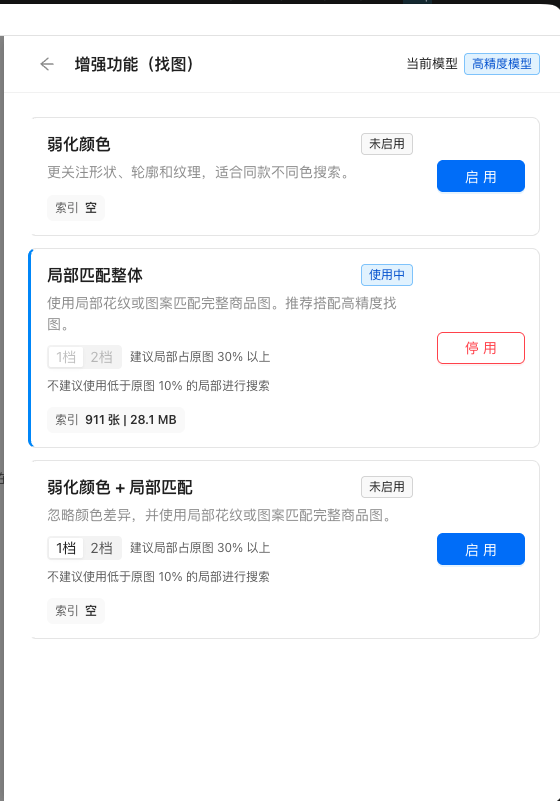
1. Enable local matching
Local matching finds a complete product from a small pattern, an incomplete reference or material in a different color.
- Open Model Center and enable the high-precision image model.
- Open Enhancements, find Local-to-whole Matching and enable it.
- High precision is recommended; very small reference regions reduce accuracy.
- If the library was indexed earlier, choose Rebuild Index to add local-matching indexes for existing images.
Model controls are temporarily unavailable while a compute job is running. Model downloads are network tasks and do not occupy the compute queue.
2. Add indexing jobs
Choose Scan and Add Images, then select a local folder or image files. Each selection creates an indexing job.
- You can add more folders while another job is running; new jobs are queued automatically.
- The same path is deduplicated, while identical files at different paths remain separate assets.
- Original images are neither uploaded nor copied elsewhere during indexing.
- Larger libraries take longer to index the first time.
3. Task queue and history
Open the bell in the top-right corner to view tasks. Compute jobs run one at a time in the order they were added.
- Active shows the running and queued jobs. A new job starts with Estimating, followed by its estimated remaining time.
- Supported jobs can be cancelled. Successful, failed and cancelled jobs then move to History.
- History keeps the processed count, elapsed time and average speed for comparing models and machines.
- Clear History removes task records only; it does not delete the library, images or indexes.
- Model downloads are network tasks, do not appear in this queue and can run alongside indexing.
4. Search by image
Drop a reference into the search area, or choose Search with this image from the library. Results are ranked by similarity.
- Automatic mode aims to show the 1–20 most relevant results.
- After setting a manual threshold, scroll down to reveal more matching results.
- If a face is detected and face search is enabled, the app switches to face search automatically.
- Open a result to inspect it, reveal the original file or search again.
5. Limit scope and similarity
When you have many source folders, enter a keyword such as print or embroidery. Matching folders are selected automatically before searching within that range.
- Uncheck any folder you do not need.
- Clear the folder keyword to return to the full library.
- Automatic similarity is best for quick searches; manual mode shows results above your chosen threshold.
6. Face search
Enable a face model in Model Center and build a face index for the library. When a query contains a face, the app switches to face search automatically.
- For multiple faces, click a face box to switch the target.
- If no face is detected, normal image search is used.
- Only images with a completed face index can appear in face results.
7. Library and groups
The library is organized into All Images, Source Folders and My Groups. Select multiple images to add them to a group, move or copy them to another folder, or remove them from the library.
- Remove from Library deletes the record and index only, not the original file.
- Move to changes the file location; Copy to creates a duplicate.
- Renaming a source folder also renames the folder on disk.
8. Files and data safety
Feature extraction, indexing and search all run locally. Original images and search content are not uploaded.
- Clearing the database removes library records and indexes, not original images.
- After moving or deleting originals outside the app, rescan or rebuild the index.
- Before moving, copying or renaming, check the destination and available disk space.
9. Troubleshooting
- Why rebuild after enabling local matching? Local matching uses a separate index, so existing images need an additional index.
- Why are model controls disabled? A compute job is running; controls return when it finishes.
- Why did a new job not start immediately? Only one compute job runs at a time, so new jobs wait in the queue.
- Why are there no search results? Check that the required image or face model is enabled and its index is built.
- What if a model download fails? Check the network and retry from Model Center.
If the issue remains, use the contact channels published on our website.